User Guide
MrTechRecruiter (MTR) is a desktop app for managing job applications, aimed at HRs in technology companies and optimized for use via a Command Line Interface (CLI) while still having the benefits of a Graphical User Interface (GUI). If you can type fast, MTR can get your application management tasks done faster than traditional GUI apps.
Table of Contents
Quick start
-
Ensure you have Java
11or above installed in your Computer. -
Download the latest
mrtechrecruiter.jarfrom here. -
Copy the file to the folder you want to use as the home folder for MrTechRecruiter.
-
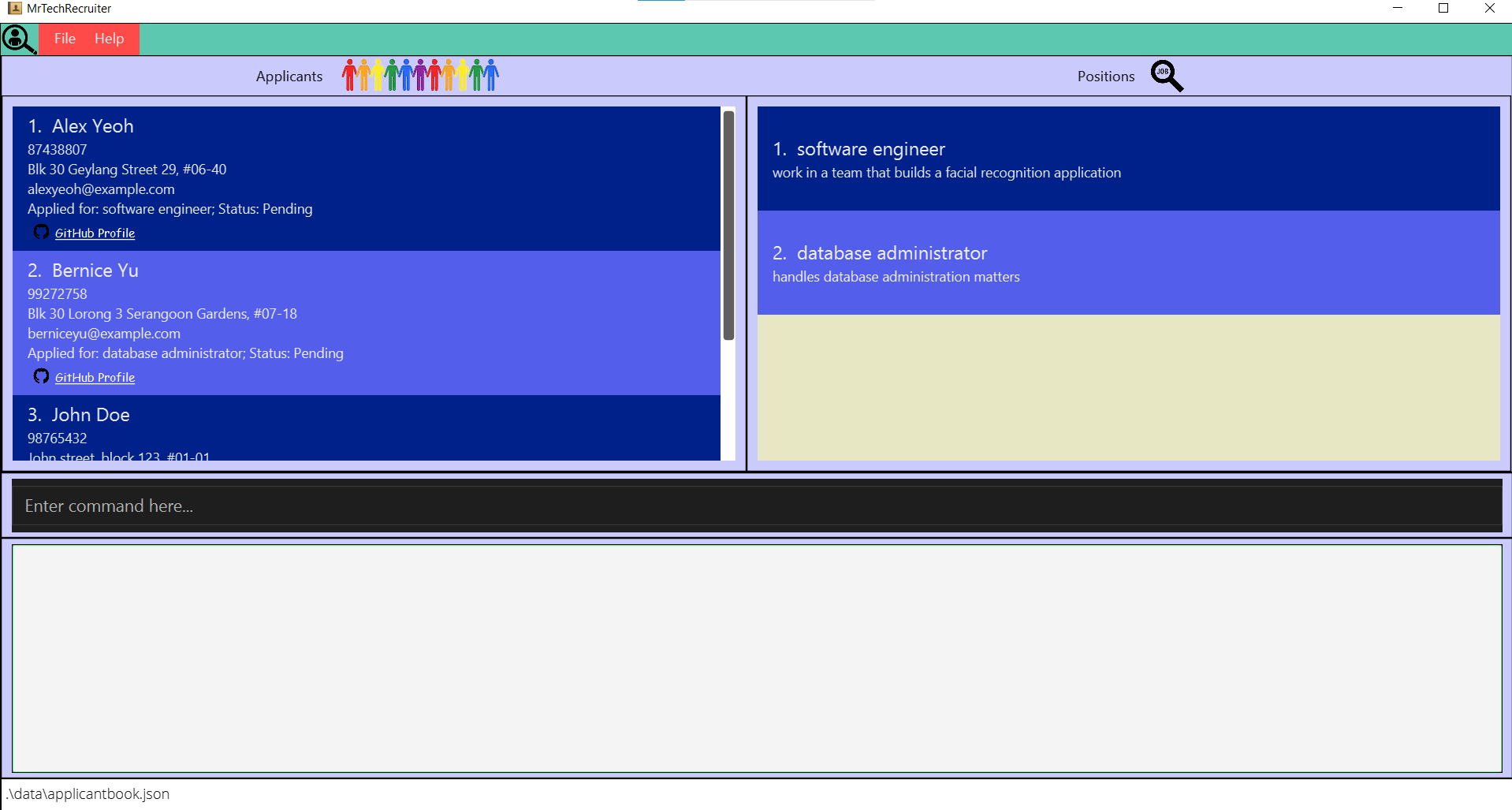
Double-click the file to start the app. The GUI similar to the below should appear in a few seconds. Note how the app contains some sample data.
-
Type the command in the command box and press Enter to execute it. e.g. typing
helpand pressing Enter will open the help window.
Some example commands you can try:-
list-applicant: Lists all applicants. -
add-applicantn/Mary Ann p/98765432 e/johnd@example.com a/Mary street, block 123, #01-01 pos/software engineer github/https://github.com/matoledo: Adds an applicant namedMary Annto thesoftware engineerposition. -
delete-applicant1: Deletes the 1st applicant shown in the current list. -
exit: Exits the app.
-
-
Refer to the Features below for details of each command.
Features
 Notes about the command format:
-
Words in
UPPER_CASEare the parameters to be supplied by the user.
e.g. inadd n/NAME,NAMEis a parameter which can be used asadd n/John Doe. -
Items in square brackets are optional.
-
Parameters can be in any order.
e.g. if the command specifiesn/NAME p/PHONE_NUMBER,p/PHONE_NUMBER n/NAMEis also acceptable. -
If a parameter should only appear once in the command but is specified multiple times, only the last occurrence of the parameter will be taken.
e.g. if you specifyp/12341234 p/56785678, onlyp/56785678will be taken. -
Parameters added after commands that do not take in parameters (such as
help,list-applicant,list-positionandexit) will be ignored.
e.g. if the command specifieshelp 123, it will be interpreted ashelp.
Command Navigation
General Commands
Position-Related Commands
- Adding a position:
add-position - Deleting a position:
delete-position - Editing a position:
edit-position - Listing all positions :
list-position - Visualizing a position with a pie chart:
visualize - Getting rejection rate of a specified position :
rate
Applicant-Related Commands
- Adding an applicant:
add-applicant - Deleting an applicant:
delete-applicant - Editing an applicant:
edit-applicant - Filtering applicants:
filter-applicant - Searching for applicants using keywords:
find-applicant - Listing all applicants :
list-applicant - Updating an applicant’s status:
mark
Adding a position: add-position
Adds a position to MrTechRecruiter.
Format: add-position tit/TITLE des/DESCRIPTION
Examples:
add-position tit/software engineer des/work in a team that builds a facial recognition application
Deleting a position: delete-position
Deletes the specified position from MrTechRecruiter.
Format: delete-position INDEX
- Deletes the position with the specified
INDEX.
Examples:
-
delete-position 1deletes the position with index 1.
Editing a position: edit-position
Edits the specified position in MrTechRecruiter.
Format: edit-position INDEX tit/NEWTITLE des/NEWDESCRIPTION
- Edit the position with the specified
INDEX
Examples:
edit-position 1 tit/Algorithm Engineer des/embed algorithms into the facial recognition application
Listing all positions : list-position
Shows a list of all positions in MrTechRecruiter.
Format: list-position
Visualizing a position with a pie chart: visualize
Displays a pie chart breakdown of a position and the statuses of its applicants. Hovering over a pie chart slice will display its percentage value.
Format: visualize POSITION_TITLE
-
POSITION_TITLEis case-insensitive. e.g.visualize software engineerwill display the pie chart for the positionSOFTWARE ENGINEER.
Getting rejection rate of a specified position : rate
Shows the rejection rate of an existing position in MrTechRecruiter.
Format: rate pos/POSITION
- If specified
POSITIONdoes not exist, will display a different message. - If the
POSITIONhas no applicants, will display aNo current applicantsmessage.
Examples:
rate pos/software engineer
Adding an applicant: add-applicant
Adds an applicant to MrTechRecruiter.
Format: add-applicant n/NAME p/PHONE_NUMBER e/EMAIL a/ADDRESS pos/POSITION github/GITHUB_PROFILE_LINK
 Tip:
An applicant should only have 1 position. This position must exist, otherwise an error message will show.
Tip:
An applicant should only have 1 position. This position must exist, otherwise an error message will show.If the job position exists, its rejection rate will update accordingly.
Examples:
add-applicant n/Mary Ann p/98765432 e/johnd@example.com a/Mary street, block 123, #01-01 pos/software engineer github/https://github.com/matoledo
Deleting an applicant: delete-applicant
Deletes the specified applicant from MrTechRecruiter.
Format: delete-applicant INDEX
- Deletes the applicant with the specified
INDEX.
Examples:
-
delete-applicant 1deletes the applicant with index 1.
Editing an applicant: edit-applicant
Edits the specified applicant in MrTechRecruiter
Format: edit-applicant INDEX [n/NAME p/PHONE_NUMBER e/EMAIL a/ADDRESS pos/POSITION github/GITHUB_PROFILE_LINK]
- Edit the applicant with the specified
INDEX - At least one argument should be present
- If the
positionfield is edited, the newpositionmust already exist in MrTechRecruiter
Examples:
edit-applicant 1 n/Jasmine Doe p/98761432 e/jdoe@example.comedit-applicant 2 n/Betsy p/1234567 pos/database administrator
Filtering applicants: filter-applicant
Filter the list of applicants by specific criteria.
Format: filter-applicant [pos/POSITION] [status/STATUS]
- The position filter is case-sensitive. e.g
software engineerwill not matchSoftware Engineer - The status filter is case-insensitive. e.g.
acceptedorACCEPTEDwill both match the"Accepted"application status. - A variable number of filters can be specified, but at least one must be present.
- The filtering uses a logical
AND. e.g.filter-applicant pos/software engineer status/acceptedwill match all applicants applying to thesoftware engineerposition AND with application status"Accepted". - Consecutive calls are independent of one another (i.e. the filters do not stack).
Examples:
-
filter-applicant status/rejecteddisplays a list of all rejected applicants. -
filter-applicant pos/database administrator status/accepteddisplays a list of all applicants to thedatabase administratorposition, that have been accepted.
Searching for applicants using keywords: find-applicant
Finds all applicants whose names match the specified search terms.
Format: find-applicant KEYWORD [MORE_KEYWORDS]
- The search is case-insensitive. e.g
hanswill matchHans - The order of the keywords does not matter. e.g.
Hans Bowill matchBo Hans - Only the name is searched.
- Only full words will be matched e.g.
Hanwill not matchHans - Applicants matching at least one keyword will be returned (i.e.
ORsearch). e.g.Hans Bowill returnHans Gruber,Bo Yang
Examples:
-
find-applicant JohnreturnsjohnandJohn Doe
Listing all applicants : list-applicant
Shows a list of all applicants in MrTechRecruiter.
Format: list-applicant
Updating an applicant’s status: mark
Updates an applicant’s status as specified.
Format: mark NAME status/STATUS
-
NAMEis case-sensitive. e.g.john doeandJohn Doewill update separate applicants’ statuses. -
STATUSis case-insensitive. e.g.acceptedandACCEPTEDwill both update the applicant’s status to"Accepted". - Note: Possible statuses are
ACCEPTED,REJECTEDorPENDING.
Examples:
-
mark john doe status/rejectedmarks the applicantJohn Doewith status"Accepted".
Undoing the last modification : undo
Recovers the state before last modification is made.
The modification command includes: add-position add-applicant edit-position edit-applicant delete-position delete-applicant, mark
Format: undo
- Note: The modifications cannot be undone after you exit the program.
Viewing help : help
Shows a message explaining how to access the help page.
Format: help
Exiting the program : exit
Exits the program.
Format: exit
Saving the data
All data is saved in the hard disk automatically after any command that changes the data. There is no need to save manually.
Editing the data file
Data is saved as a JSON file [JAR file location]/data/applicantbook.json and [JAR file location]/data/positionbook.json. Advanced users are welcome to update data directly by editing that data file.
 Caution:
If your changes to the data file makes its format invalid, MrTechRecruiter will discard all data and start with an empty data file at the next run.
Caution:
If your changes to the data file makes its format invalid, MrTechRecruiter will discard all data and start with an empty data file at the next run.
FAQ
Q: How do I transfer my data to another Computer?
A: Install the app in the other computer and overwrite the empty data file it creates with the file that contains the data of your previous MrTechRecruiter home folder.
Command summary
| Action | Format, Examples |
|---|---|
| Add Applicant |
add-applicant n/NAME p/PHONE_NUMBER e/EMAIL a/ADDRESS pos/POSITION github/GITHUB_PROFILE_LINK e.g., add-applicant n/Mary Ann p/98765432 e/johnd@example.com a/Mary street, block 123, #01-01 pos/software engineer github/https://github.com/matoledo
|
| Delete Applicant |
delete-applicant INDEXe.g., delete-applicant 3
|
| Edit Applicant |
edit-applicant INDEX [n/NAME p/PHONE_NUMBER e/EMAIL a/ADDRESS pos/POSITION github/GITHUB_PROFILE_LINK] e.g. edit-applicant n/Jasmine Doe p/98761432 e/johnd@example.com
|
| Filter Applicants |
filter-applicant [pos/POSITION] [status/STATUS]e.g., filter-applicant pos/software engineer status/accepted
|
| Find Applicant |
find-applicant KEYWORD [MORE_KEYWORDS]e.g., find James Jake
|
| List Applicants | list-applicant |
| Update Applicant Status |
mark NAME status/STATUS e.g., mark john doe status/accepted
|
| Add Position |
add-position tit/TITLE des/DESCRIPTION e.g., add-position tit/software engineer des/work in a team that builds a facial recognition application
|
| Delete Position |
delete-position INDEXe.g., delete-position 1
|
| Edit Position |
edit-position INDEX tit/NEWTITLE des/NEWDESCRIPTIONe.g., edit-position 1 tit/Algorithm Engineer des/embed algorithms into the facial recognition application
|
| List Position | list-position |
| Visualize Positions |
visualize POSITION_TITLEe.g., visualize database administrator
|
| Rate |
rate pos/POSITION e.g. rate pos/software engineer
|
| Undo Command | undo |
| Help | help |
| Exit | exit |